
- Details
- Written by: Adam Melcher
- Category: Pages
You deserve an ecommerce system that feels as modern as the business you’re building. J2Commerce 6 brings your Joomla store into a faster, cleaner, more confident future. Download for free today.
- Details
- Written by: Olivier
- Category: Pages
This article is a guide for you to install J2Commerce on Joomla 6 or to update your J2Commerce store from Joomla 5 to Joomla 6.
Read more: Update J2Commerce 4 to Joomla 6
Update J2Commerce v4.0.x to v4.1.x under Joomla 5
We assume you already have an instance of J2Commerce v4.0.x running under Joomla 5.If you do not have J2Commerce installed under Joomla 5 and you want to move your site to Joomla 6, first upgrade your Joomla site, enable the backward compatibility plugin and its options, then install J2Commerce v4.1.x.
Disable some or all J2Store/J2Commerce extensions under Joomla 5
There are 2 ways to do this, manually or via the Migration Checker.
The easy way: use the Migration Checker utility
- Download the Migration Checker: Migration Checker Utility Version 2
- Install in System -> Install -> Extensions
- Once installed, go to Components -> J2Store Migration Checker v2
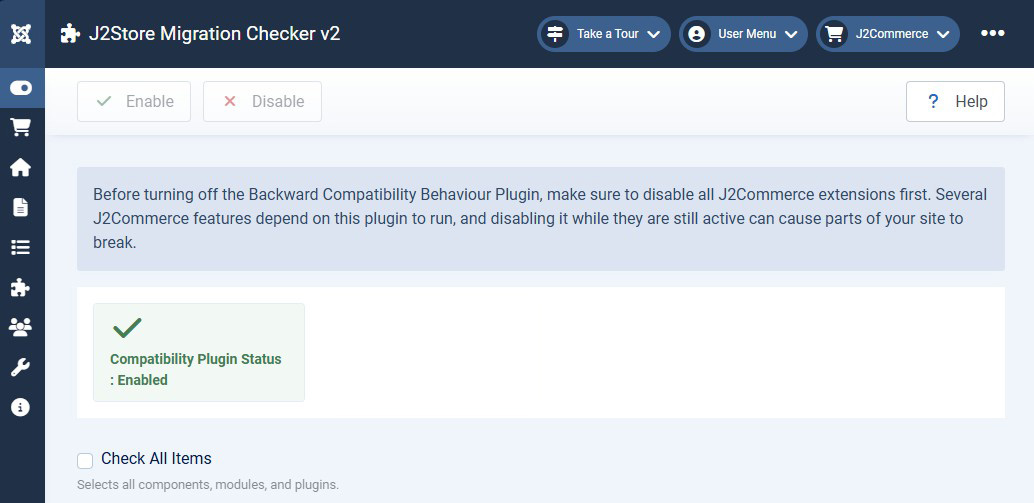
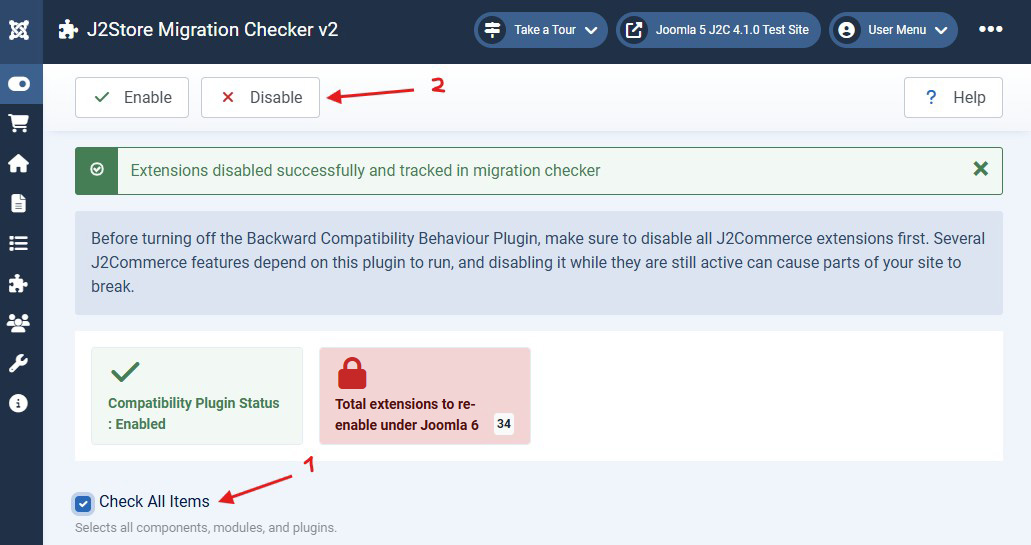
The utility remembers which extensions have been disabled and will only re-enable those same extensions later on during this process.
When doing it manually
- disable the system plugins: j2store and any j2Store/j2Commerce related plugin (for instance, Advanced Cart) .
- disable the content plugin: j2store.
- disable the finder plugin: j2store.
- disable the administrator module: J2Store Administrator Menu.
Disable any other third-party extension that needs the backward compatibility plugin enabled
Go to the Joomla update page and launch it
Go to System -> Update -> Joomla. Wait for the checks to go through. It can take a while if you have a large number of extensions installed.Disable the Joomla 5 Compatibility plugin
During the update checks, you will be prompted to disable the behavior plugin.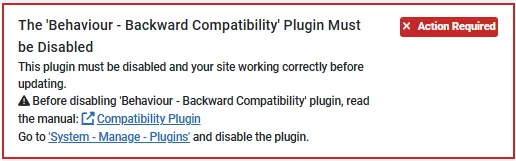
Follow the link and disable the Joomla 5 compatibility plugin.
Resume your update to Joomla 6
Make sure there is no remaining important warning before you move your site to Joomla 6.Enable the behavior plugin for Joomla 6
ONLY if you are not using the Migration Checker - The utility does that step for you.Go to the plugins page, filter by the 'behavior' plugin type and enable the Backward Compatibility 6 plugin and all its options.
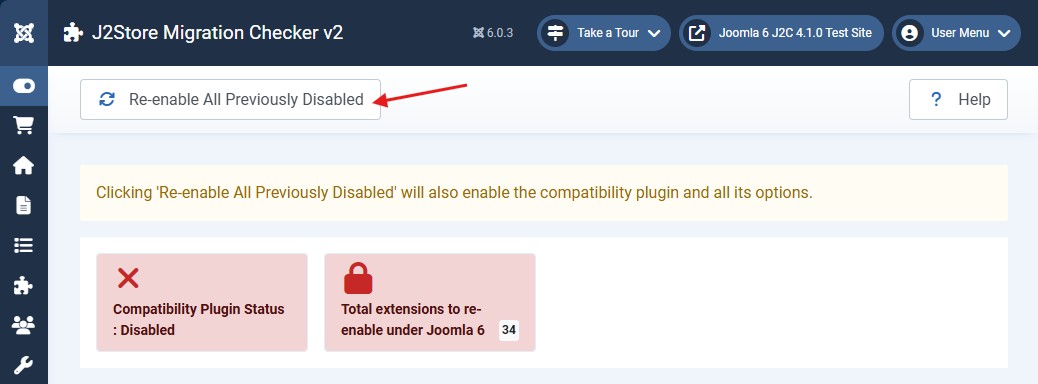
Re-enable all J2Store/J2Commerce extensions that were disabled under Joomla 5
When using the Migration Checker
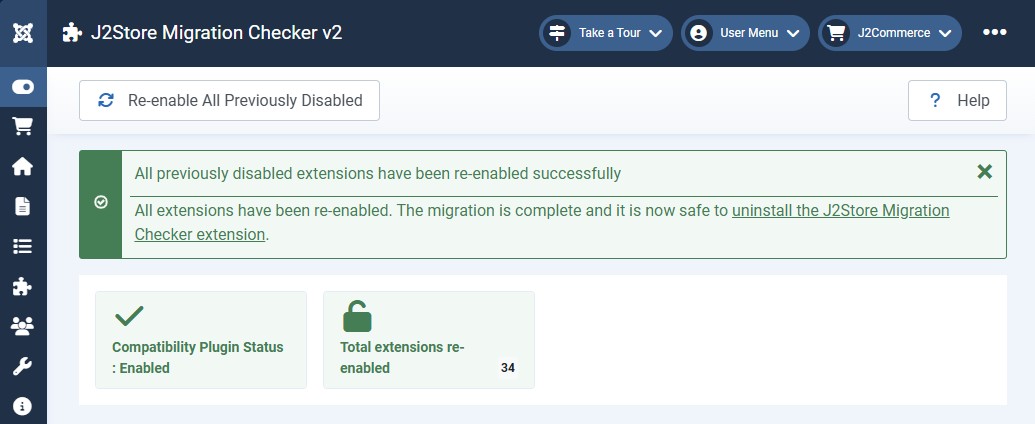
When disabling was done manually
-
- enable the system plugins: j2store and any j2Store/J2Commerce related plugin that was disabled.
- enable the content plugin: j2store.
- enable the finder plugin: j2store (if it was disabled before the update, skip this step).
- enable the administrator module: J2Store Administrator Menu.
Re-enable all third party plugins that were disabled under Joomla 5
Make sure those extensions are supported under Joomla6!- Details
- Written by: Olivier
- Category: Pages
Software Licenses Terms of Use.
- Details
- Written by: Adam Melcher
- Category: Pages
This article is a guide for you to migrate from J2Store 3 to J2Store 4 so you can upgrade from Joomla 3 to Joomla versions 4 or 5.
Read more: Migration from J2Store 3 to 4
Step 1: Backup, Backup, Backup
Please take a FULL BACKUP of your site before you start the migration process. There are a number of breaking changes in J2Store 4 so it's always better to have the backup and not need it, than need the backup and not have it.Step 2: Install the Migration Helper Utility
We have created a simple migration helper that check for potential conflicts with the plugins and lets you disable them before the migration.- Download the utility from here: Migration Helper Utility
- Install it by logging into your Joomla 3 administrator -> extensions -> Install
- Once installed, go to Components -> J2Store Migration checker
Step 3: Disable all J2Store Plugins, Modules, and Apps
The migration helper will list all the J2Store plugins, apps, modules, extensions that needs to be disabled before you can proceed with it.Once you have disabled them, you will see a “green light” for proceeding with the migration.
Important
Please take note of the list of plugins you have there as they need to be upgraded individually with their respective Joomla 4 compatible versions (EXCEPT for the ones set as Core J2Store, which are updated automatically with J2Store).
We will be publishing the Joomla 4 compatibility for the official J2Store plugins / apps / modules / extensions one by one. You can check our Extensions page for a list of available extensions for J2Store with Joomla 4 compatibility.
If you have any custom developed extension for J2Store, please reach out to the respective vendors / developers for compatibility.
We’ll not be able to support any custom developed extensions / plugins / add-ons / modules.
Step 4: Install J2Store 4
Once you have disabled all the J2Store related extensions, you can proceed to download the J2Store 4 within the Migration Helper UtilityOnce you have the 'green light', a button takes you to the download of J2Store v4.0.5. 4.0.5 is the last version you can install under Joomla 3.
Step 5: Upgrading J2Store plugins
Please check our extensions section to get the latest version of the J2Store plugins / apps / modules / extensions you have in your site.You need to install the Joomla 4 compatible version of all the J2Store (non Core) plugins / apps / modules / extensions you have in your site before you can go ahead and upgrade to Joomla 4.
We are publishing the Joomla 4 compatible J2Store plugins / extensions in the J2Commerce Extensions directory.
Step 6: Ensure all the plugins / extensions in your site are Joomla 4 compatible.
If you have other extensions / plugins / modules from third party developers, you need to check their Joomla 4 compatibility before upgrading to Joomla 4.Just upgrading J2Store 3 to J2Store 4 will not ensure compatibility for Joomla 4. All the extensions and plugins that you use in your site should be Joomla 4 compatible before you upgrade.
- Clean-up f0f libraries, especially if you are using Akeeba products (install Magic Eraser). To know if you require such a cleanup, go to Extensions -> Manage -> Manage, select the search tools, then select the 'Library' type. If you have more than 1 instance of f0f or FOF, please install Magic Eraser.
- Upgrade to Joomla 4 only after ensuring all the plugins / extensions in your site are Joomla 4 compatible.
Step 7: Under Joomla 4, re-enable J2Store Plugins, Modules, and Apps from Step 3.
If you have template overrides, they may no longer be in sync with J2Store 4. Please review them.Step 8: All set-up under Joomla 4? Un-install the Migration Checker utility.
- Details
- Written by: Adam Melcher
- Category: Pages
Apps, payment & shipping plugins, reports, modules and more.
Stay Updated
Subscribe for free and be the first to know about the latest features, updates, and new additions.